ATC: The Terminal Air Traffic Control Game That Never Lets Up
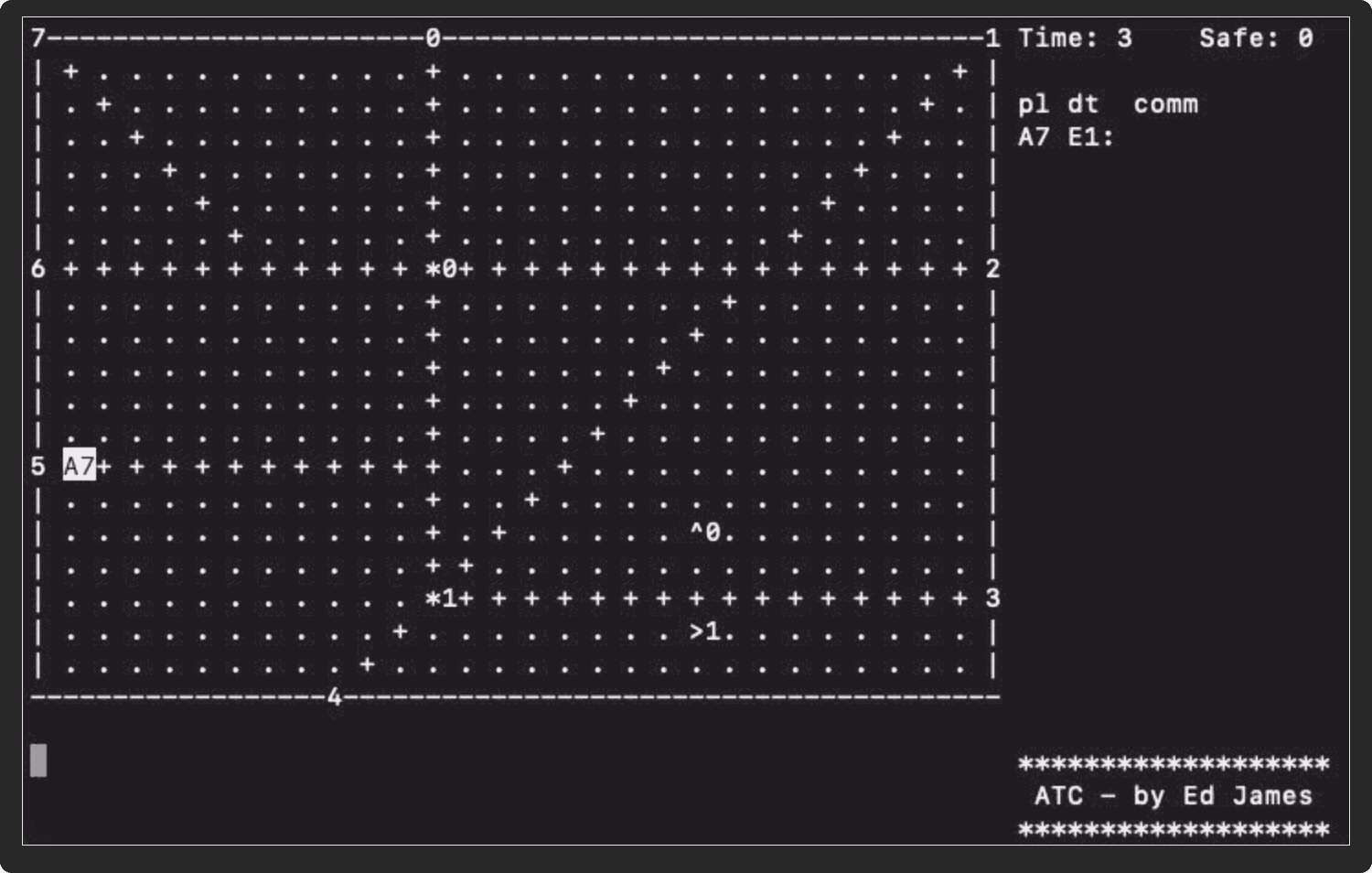
There is a particular kind of pressure that only real-time terminal games can generate. No graphics, no sound design, just a grid of letters crawling across a screen and the growing certainty that you are about to cause a mid-air collision. atc (Air Traffic Controller) is that game. It has been running on Unix systems since the late 1980s, and it remains as stressful and as good as it ever was.
What is atc?
atc is a real-time air traffic control simulation for the terminal. You manage a radar screen full of aircraft: jets and propeller planes entering from the edges of the map, heading for destinations (other exits or airports), and depending entirely on you to get them there safely. You issue commands to change their altitude and heading. The game never pauses. Planes pile up. Fuel runs out. Two letters converge on the same cell.
There is no winning state. The goal is simply to keep going as long as possible, to safely direct as many aircraft as possible before something goes wrong.
History and Background
atc was written by Ed James at the University of California, Berkeley in the late 1980s (copyright 1990). James described it as an adaptation of an unknown PC game he'd encountered, rewritten as a Unix terminal game. His contact at the time was edjames@ucbvax.berkeley.edu the classic UCB VAX address.
The game was distributed as part of BSD Unix and has been carried forward ever since through the bsd-games (also packaged as bsdgames) collection, a set of around 50 classic text-mode games originally from NetBSD, now maintained and ported to Linux. The Linux port used in most distributions is maintained in the vattam/BSDGames GitHub repository. The canonical BSD version continues in OpenBSD's and NetBSD's game trees.
The bsd-games package has been around in Linux distributions since at least the mid-1990s. Current versions are 2.17 (the long-standing Linux port, found in Debian/Ubuntu/Fedora) and 3.3 (a newer revision found in Arch, Alpine, and MacPorts).
Installing atc
Linux
atc ships inside the bsd-games (or bsdgames) package on virtually every major Linux distribution.
# Debian / Ubuntu / Raspbian / Kali
sudo apt install bsdgames

# Fedora / RHEL / Rocky / AlmaLinux
sudo dnf install bsd-games

# Arch Linux / Manjaro / Artix / Parabola
sudo pacman -S bsd-games

# Alpine Linux
apk add bsd-games

# Gentoo
emerge games-misc/bsd-games

# openSUSE
sudo zypper install bsd-games

# Void Linux
xbps-install bsd-games

# Slackware
# Available from SlackBuilds.org as bsd-games
After installing, run it with:
atc
macOS
The easiest route is MacPorts, which carries bsd-games 3.3:
sudo port install bsd-games
Alternatively, you can build from source. The game depends on ncurses, which is present on macOS.
From Source
git clone https://github.com/vattam/BSDGames
cd BSDGames
./configure
make
sudo make install
On OpenBSD and NetBSD, atc is part of the base system and requires no installation.
The Display
When you start atc, the screen is divided into four areas:
1. Radar Display (the large grid on the left) This is the main playing field. It shows the airspace as a 2D overhead view. On it you will see:
- Planes: a letter (uppercase = prop, lowercase = jet) followed by a single digit indicating altitude in thousands of feet. Example:
A7is prop plane A at 7,000 ft;b4is jet b at 4,000 ft. - Airports: a digit (the airport number) followed by a directional symbol (
^>v<) indicating the required approach direction. Example:0>is airport 0, approached from the west (landing heading east). - Beacons: an asterisk or circle character followed by a number. Example:
*1is beacon 1. - Exit points: numbers along the border of the map, each representing an entry/exit point.
- Lines: drawn segments (horizontal, vertical, and exactly diagonal) that serve as visual reference guides for routing aircraft. They represent suggested airways.
2. Information Area (right side, upper) A live list of all active planes. Each line shows:
<plane-id><altitude>[*] <destination>: <current command>
The * after the altitude means the plane is low on fuel. Example:
B4*A0: Circle @ b1
This reads: Prop plane B, at 4,000 ft, low on fuel, destination is airport 0, currently circling at beacon 1.
Also shown: elapsed game time and the count of planes safely directed out.
3. Input Area (bottom) Echoes your current command as you type it.
4. Author Area (small credit section)
Aircraft: Jets vs. Props
There are two types of aircraft, and the distinction matters for timing:
- Prop planes: identified by uppercase letters (A, B, C…). They move every other game update - slower.
- Jets: identified by lowercase letters (a, b, c…). They move every game update - faster.
Both types:
- Enter the airspace at 7,000 feet
- Must reach 9,000 feet to exit through an exit point
- Must descend to 0 feet to land at an airport (and be directly over it)
- Can turn a maximum of 90 degrees per move
Fuel: every plane has a fuel supply that depletes each turn. When fuel runs low, an asterisk appears next to the plane's altitude in the info panel. If fuel hits zero, the plane is lost. You must keep planes moving toward their destination.
Collision: two planes are considered to have collided if they occupy adjacent cells in three dimensions, horizontally adjacent on the grid or within one altitude level of each other. This is stricter than it might look. Two planes at the same (x,y) position but at altitudes 4 and 5 are colliding. Two planes at different altitudes but adjacent grid squares can also collide.
Destinations and Safe Handling
Every plane that enters has a destination, either an exit point or an airport. The destination is shown in the info panel. A plane is safely handled when it reaches its destination correctly:
- Exit point: the plane must pass through the correct exit at exactly 9,000 feet (altitude 9). The direction it's heading when it crosses the exit boundary doesn't matter, only that it exits through the right numbered exit at the right altitude.
- Airport: the plane must be at altitude 0 and positioned directly over the airport, moving in the correct landing direction (shown by the directional arrow on the airport).
Losing conditions:
- A plane collides with another plane
- A plane runs out of fuel
- A plane is sent to the wrong destination (lands at the wrong airport, exits from the wrong exit)
- A plane drops to altitude 0 while not directly over an airport
- A plane exceeds altitude 9 (ceiling violation)
- A plane drifts off the map without going through its correct exit
Planes that are on the ground at an airport (altitude 0) are waiting for takeoff. The only valid command for a grounded plane is to increase its altitude, this is how you launch it.
Command Syntax
This is where atc gets interesting. Commands follow a strict hierarchical syntax with a state-machine parser. The input area shows your command as you build it character by character. Pressing ? at any point lists valid next characters. Pressing backspace erases the last character. Pressing Return submits the command.
Commands are rejected if they are semantically invalid (e.g., telling a plane to climb to its current altitude, or giving an airport command to a plane that's already airborne in normal mode).
Step 1: Select a Plane
Type the plane's letter. Uppercase for props, lowercase for jets. Example: A selects prop plane A, b selects jet b.
Step 2: Choose a Command
After selecting a plane, type one of:
| Key | Command | Notes |
|---|---|---|
a |
Altitude | Adjust altitude (immediate only) |
t |
Turn | Change heading (can be delayed) |
c |
Circle | Enter a holding pattern (can be delayed) |
m |
Mark | Highlight the plane on display |
u |
Unmark | Remove highlight; auto-remark when delayed command fires |
i |
Ignore | Suppress highlighting (useful for planes on long straight routes) |
Altitude Command (a)
Altitude commands are immediate only, they take effect on the next update. After a, type one of:
| Next Key | Meaning |
|---|---|
[0-9] |
Set absolute altitude to N thousand feet |
c or + |
Climb (relative), then type number of thousands |
d or - |
Descend (relative), then type number of thousands |
Examples:
Aa9— Set plane A to altitude 9,000 ftAa0— Set plane A to altitude 0 (land, if over an airport)Aac2— Climb plane A by 2,000 ftAad3— Descend plane A by 3,000 ft
Turn Command (t)
Turns are delayable (more on delay below). After t, type one of:
| Next Key | Meaning |
|---|---|
w |
Turn to heading 0° (North) |
e |
Turn to heading 45° (Northeast) |
d |
Turn to heading 90° (East) |
c |
Turn to heading 135° (Southeast) |
x |
Turn to heading 180° (South) |
z |
Turn to heading 225° (Southwest) |
a |
Turn to heading 270° (West) |
q |
Turn to heading 315° (Northwest) |
l |
Turn left 45° (relative) |
L |
Turn left 90° (hard left, relative) |
r |
Turn right 45° (relative) |
R |
Turn right 90° (hard right, relative) |
t |
Turn towards a target (beacon, airport, or exit) |
The direction keys (w e d c x z a q) are arranged around the s key on a QWERTY keyboard to form a compass rose:
q w e
a   d
z x c
The "turn towards" sub-command (tt) is very useful. After tt, type:
| Key | Target type | Then type |
|---|---|---|
b or * |
Beacon | beacon number |
a |
Airport | airport number |
e |
Exit | exit number |
Example: Attb1 — turn plane A towards beacon 1.
Circle Command (c)
Puts the plane into a circular holding pattern. After c, optionally type:
| Key | Meaning |
|---|---|
l |
Circle counterclockwise |
r |
Circle clockwise (default) |
If you just type c and hit Return, the plane circles clockwise.
Delay Modifier (@ or a)
This is the most powerful feature of the command system. Any delayable command (t, c, and the "towards" variants) can include a delay that tells the plane to wait until it reaches a specific beacon before executing.
After typing a delayable command (but before pressing Return), type @ or a, then b (for beacon), then the beacon number.
Syntax: [plane][command][@/a][b][beacon-number]
Examples:
Atlab1— Plane A: turn left, but do it when reaching beacon 1Bcrab2— Plane B: circle (clockwise), execute at beacon 2gtte4ab2— Plane g: turn towards exit 4, execute at beacon 2
The delayed command appears in the information panel next to the plane's status. When the plane reaches the specified beacon, the command fires automatically.
Mark, Unmark, Ignore
[plane]m— Mark: highlights the plane prominently in the display. Useful to keep an eye on a specific aircraft.[plane]i— Ignore: de-emphasizes the plane (shown with dashed representation). Good for planes that are on a clear, safe path and don't need attention.[plane]u— Unmark: like ignore, but the plane becomes highlighted again automatically when a delayed command fires — a useful combination with delay.
Special Keys (Outside Commands)
| Key | Action |
|---|---|
? |
Show valid next characters at current input position |
Backspace |
Erase last character of current command |
Return (empty) |
Skip ahead one update immediately |
Ctrl-L |
Redraw the screen if it gets garbled |
! |
Shell escape (forks a child shell) |
-l flag |
List available games |
-s / -t flag |
Show high scores |
Note: suspending the game (Ctrl-Z) is disabled. The game runs in real time and can't be paused.
Full Command Examples
| Command | Meaning |
|---|---|
Aa7 |
Set plane A altitude to 7,000 ft |
Aa0 |
Land plane A (must be over airport) |
Aac3 |
Climb plane A by 3,000 ft |
Atd |
Turn plane A to heading East (90°) |
Atl |
Turn plane A left 45° |
AtR |
Turn plane A hard right (90°) |
Attb1 |
Turn plane A towards beacon 1 |
Atta0 |
Turn plane A towards airport 0 |
Atte2 |
Turn plane A towards exit 2 |
Atlb2 |
Turn plane A left, at beacon 2 |
Atlab1 |
Turn plane A left, when it reaches beacon 1 |
Ac |
Plane A: circle (clockwise) |
Acl |
Plane A: circle counterclockwise |
Aclb3 |
Plane A: circle counterclockwise, at beacon 3 |
Am |
Mark plane A |
Ai |
Ignore plane A |
Au |
Unmark plane A |
Atqb1 |
Turn plane A to NW heading, at beacon 1 |
Scoring
The score system is straightforward:
- Primary metric: number of planes safely directed out of the airspace. A plane counts as "safe" when it correctly reaches its destination (right exit at altitude 9, or correct airport with correct approach direction).
- Tiebreaker: if two players have the same number of planes saved, the one who ran the game longer (in real time and game time) wins.
- Other statistics (radar updates, wall-clock time) are displayed but are "merely for fun" per the man page.
High scores are stored in /var/games/atc_score (Linux) or $HOME/.atc.scores depending on the system. The scoreboard records player name, hostname, game scenario played, number of planes saved, and both game duration and real elapsed time.
To view the high score table:
atc -s
Game Scenarios / Maps
atc ships with a set of built-in game scenarios, each defining a different map with different airport counts, beacon placements, exit positions, dimensions, and difficulty tuning. The available games are listed in /usr/share/games/atc/Game_List (or the equivalent path on your system).
To list available games:
atc -l
To play a specific game:
atc -g default
atc -f OHare
Built-in Scenarios
| Scenario | Grid | Update | New Plane Rate | Notes |
|---|---|---|---|---|
| easy | 15×15 | 7s | every 12 | Small map, 1 airport, 1 beacon, 4 exits. Ideal starting point. |
| novice | 30×21 | 6s | every 6 | Two symmetric runways, 2 beacons, 4 exits. Clean X-pattern layout. |
| default | 30×21 | 5s | every 10 | 2 airports, 2 beacons, 8 exits. The standard scenario. |
| game_2 | 30×21 | 5s | every 8 | 1 airport, 7 beacons, 8 exits. Dense beacon coverage. |
| game_3 | 30×21 | 5s | every 5 | 1 airport, 1 beacon, 4 exits. Sparse, fast. |
| game_4 | 30×21 | 5s | every 5 | 2 airports, 10 beacons, 4 exits. Complex routing. |
| crossover | 29×21 | 5s | every 5 | No airports, 4 beacons in diamond, 8 exits. Pure exit routing. |
| crosshatch | 30×21 | 5s | every 5 | 3 airports, 4 beacons, 8 exits. Dense grid of airways. |
| Tic-Tac-Toe | 30×21 | 5s | every 5 | 4 beacons in rectangle, 6 exits, grid corridors. |
| two-corners | 30×21 | 5s | every 5 | 1 airport, 2 beacons, 6 exits. Diagonal-heavy routes. |
| Atlantis | 30×21 | 5s | every 5 | 2 airports, 7 beacons, 4 exits. Rich beacon network. |
| OHare | 30×21 | 5s | every 5 | Named after O'Hare International. 1 airport, 3 beacons, 6 exits. |
| airports | 30×21 | 6s | every 6 | 7 airports, 9 beacons, 2 exits. Airport-heavy. |
| box | 29×21 | 5s | every 6 | 4 airports, 9 beacons, 9 exits. Large and complex. |
| Killer | 30×21 | 1s | every 4 | Updates every 1 second, new plane every 4 updates. Extremely fast. |
Killer deserves a special mention: with a 1-second update rate and new planes arriving constantly, it is brutally difficult. The standard difficulty range runs from easy up through default, with Killer at the extreme end.
Custom Scenarios
You can write your own scenario files. A game file has two sections: a parameters block and an elements block.
Parameter syntax (semicolon-terminated):
update = 5;
newplane = 10;
width = 30;
height = 21;
Element syntax (semicolon-terminated, # for comments):
exit: ( x y direction ) ... ;
beacon: ( x y ) ... ;
airport: ( x y direction ) ... ;
line: [ ( x1 y1 ) ( x2 y2 ) ] ... ;
Direction codes use the same compass-key layout as commands (w=N, e=NE, d=E, c=SE, x=S, z=SW, a=W, q=NW).
Constraints:
- Exits must be on the border of the map
- Airports and beacons must be inside the borders
- Lines must be horizontal, vertical, or exactly 45-degree diagonal
- Coordinates range from 0 to width−1 and 0 to height−1
To use a custom scenario, add it to Game_List, otherwise it won't be tracked in the high score file.
Command-Line Options
atc           Start with the default game
atc -l        List all available game scenarios
atc -g NAME   Play the named game scenario
atc -f NAME   Same as -g
atc -r SEED   Set random seed (for replay / reproducibility)
atc -s        Display the high score list
atc -t        Same as -s
atc -p        Print the path to the game data directory
atc -q        Play without sound (on systems that have it)
atc -?        Print usage / help
Game Files Location
| File | Purpose |
|---|---|
/usr/share/games/atc/Game_List |
List of available scenarios |
/usr/share/games/atc/<scenario> |
Individual scenario definition files |
/var/games/atc_score |
High score file (Linux, shared) |
$HOME/.atc.scores |
High score file (some BSD builds) |
The man page is at man 6 atc on most systems. Read it with:
man 6 atc
Tips and Strategies
Start with easy or novice. The small map on easy gives you time to learn the command syntax without being overwhelmed. Novice has a clean symmetric layout that makes routing intuitive.
atc -g easy
atc -g novice
Use the delay system heavily. The @/a delay modifier is what separates casual play from effective play. Instead of watching a plane and manually turning it when it reaches a beacon, you can issue the turn command in advance: Atlab1 (turn A left at beacon 1). This frees your attention for other aircraft.
Use circle to buy time. When you have a plane that's converging toward a conflict and you can't sort it out immediately, put it in a circle (Ac). It'll hold in place, burning fuel but not crashing. Use this as a stall tactic while you handle higher-priority traffic.
Altitude is your primary separation tool. Two planes can safely occupy the same grid square if they're more than one altitude unit apart. When two planes are converging on the same path, stagger their altitudes rather than trying to route them around each other. A two-unit altitude difference is safe.
Watch the fuel indicators. The * in the info panel means a plane is at low fuel (below 15 units). Prioritize those planes immediately. Route them directly to their destination without delays.
Use mark/ignore to manage attention. Mark (m) planes that need watching. Ignore (i) planes that are safely on course. The visual de-emphasis helps you focus on what matters. Use unmark (u) with a delayed command so the plane re-highlights when the command fires.
Jets are harder to manage. Because jets move every update while props move every other update, jets cross the map faster, arrive at conflicts sooner, and give you less time to react. Pay closer attention to lowercase-letter aircraft.
Don't let planes exit through the wrong exit. This is an immediate game-over condition. Make sure you know each plane's destination before routing it. The destination is always shown in the info panel.
Landing requires exact positioning. A plane must be at altitude 0 AND directly over the airport AND moving in the correct approach direction all at once. Set up the approach from a distance, descend gradually and align with the runway heading well before the airport. Landing in the wrong direction at the right airport is still a loss.
Empty Return = time skip. If you need to quickly advance to the next update (e.g., to see where a fast-moving situation goes), press Return with no command typed. Use sparingly.
Ctrl-L fixes screen corruption. If your display gets garbled (which happens in some terminal emulators), Ctrl-L forces a full redraw.
Known Bugs
The BUGS file in the source records a few known issues:
- The log file restarts if interrupted
- The screen sometimes refreshes after you have quit (the original author's own note)
Ctrl-Z(suspend) is disabled but the behavior of this may vary by system- The process doesn't exit cleanly after a
SIGHUP
These are minor and don't affect normal gameplay.
Why atc Holds Up
atc is an old game in every sense. Its author's email address ended in .berkeley.edu. Its graphics are ASCII characters. Its sound support is a terminal bell. It has one known bug that the original author documented himself in 1990 and which still ships in the BUGS file today.
And yet it's a genuinely difficult, genuinely interesting real-time management game. The command syntax, while initially cryptic, is actually efficient once internalized. The delay system in particular is elegant design: it lets you think ahead and pre-program aircraft behavior, which is exactly the kind of forward planning that real traffic management requires.
It also scales naturally in difficulty through its scenarios and update rate. easy is forgiving enough to learn on. Killer is punishing enough that achieving any meaningful score on it is an accomplishment.
If you have bsd-games installed, atc is already on your system. It's worth at least one session.
Man page: man 6 atc
Source: https://github.com/vattam/BSDGames/tree/master/atc
OpenBSD man page: https://man.openbsd.org/atc.6
FreeBSD man page: https://man.freebsd.org/cgi/man.cgi?query=atc&sektion=6